Modes & Settings
How strongly the CPU plays has its own page: Difficulty. This page is everything around the match itself - unlocks, rounds, options and the records the game keeps.
Campaign and unlocks
Win a match against an unlocked sector to earn a clearance coin for that opponent: bronze on Easy, silver on Hard, or gold on Master. A match must be at least 9 rounds on Easy, 6 on Hard, or 3 on Master. Shorter wins still count in your match stats, but award no coin. The three clearance buttons in an unlocked opponent's dossier set those difficulty/round presets; you can also set a longer match in Options. Winning that tier again does not award a second coin. Wins against earlier unlocked opponents count too — you do not have to beat only the newest sector.
Coins are permanent, are never spent, and are counted by colour across all twelve opponents. The Stats screen shows your gold, silver, and bronze coins in one row per tier, one slot per opponent. A locked sector's dossier displays its requirements; the game opens sectors in order once all three cumulative totals reach the required counts:
| Sector to open | Bronze | Silver | Gold |
|---|---|---|---|
| M-01 (starts open) | 0 | 0 | 0 |
| M-02 | 1 | 0 | 0 |
| M-03 | 2 | 0 | 0 |
| M-04 | 3 | 0 | 0 |
| M-05 | 4 | 1 | 0 |
| M-06 | 5 | 2 | 0 |
| M-07 | 6 | 3 | 0 |
| M-08 | 7 | 6 | 1 |
| M-09 | 8 | 7 | 2 |
| M-10 | 9 | 8 | 4 |
| M-11 | 10 | 9 | 6 |
| M-12 | 11 | 10 | 9 |
For example, four bronze coins alone will not open M-05: you also need a silver coin. The game derives the open sectors from your coins when loading a save, rather than trusting an old saved unlock count (campaign_update_unlocks() in src/campaign.c). A victory only awards a coin for the tier you played; it does not retroactively award lower-tier coins. After a qualifying victory, the match-result screen shows a clearance message (sometimes labelled NEXT SECTOR UNLOCKED); a shorter victory against the newest open sector reports clearance unfulfilled.
DEUS SUPREMUS normally requires M-12 to be open. The maintainer currently keeps him open to everyone on purpose, while testing the mode. DEUS matches grant no clearance coins. See Errata & Known Issues.
Rounds
Choose 1 to 12 rounds on the Options screen; the + and - buttons in
screens_handle_options_click() stop at both ends. With no saved settings the game starts at
2 rounds (storage_load_settings() in src/storage.c), and the value is saved with your other
settings when you press BACK (SAVE). See Errata & Known Issues for why that is 2 and not 6.
Options
Page 1 contains the match, difficulty, visual, and volume controls. Page 2 adds custom music and the Action audio controls. Use the bottom-right arrows beside the 1 / 2 or 2 / 2 indicator to change pages.
On desktop, these settings are saved in settings.txt next to the game. The browser build stores the same settings in browser local storage as xenokoi_settings.txt; they stay in that browser profile, not in an account or cloud save.
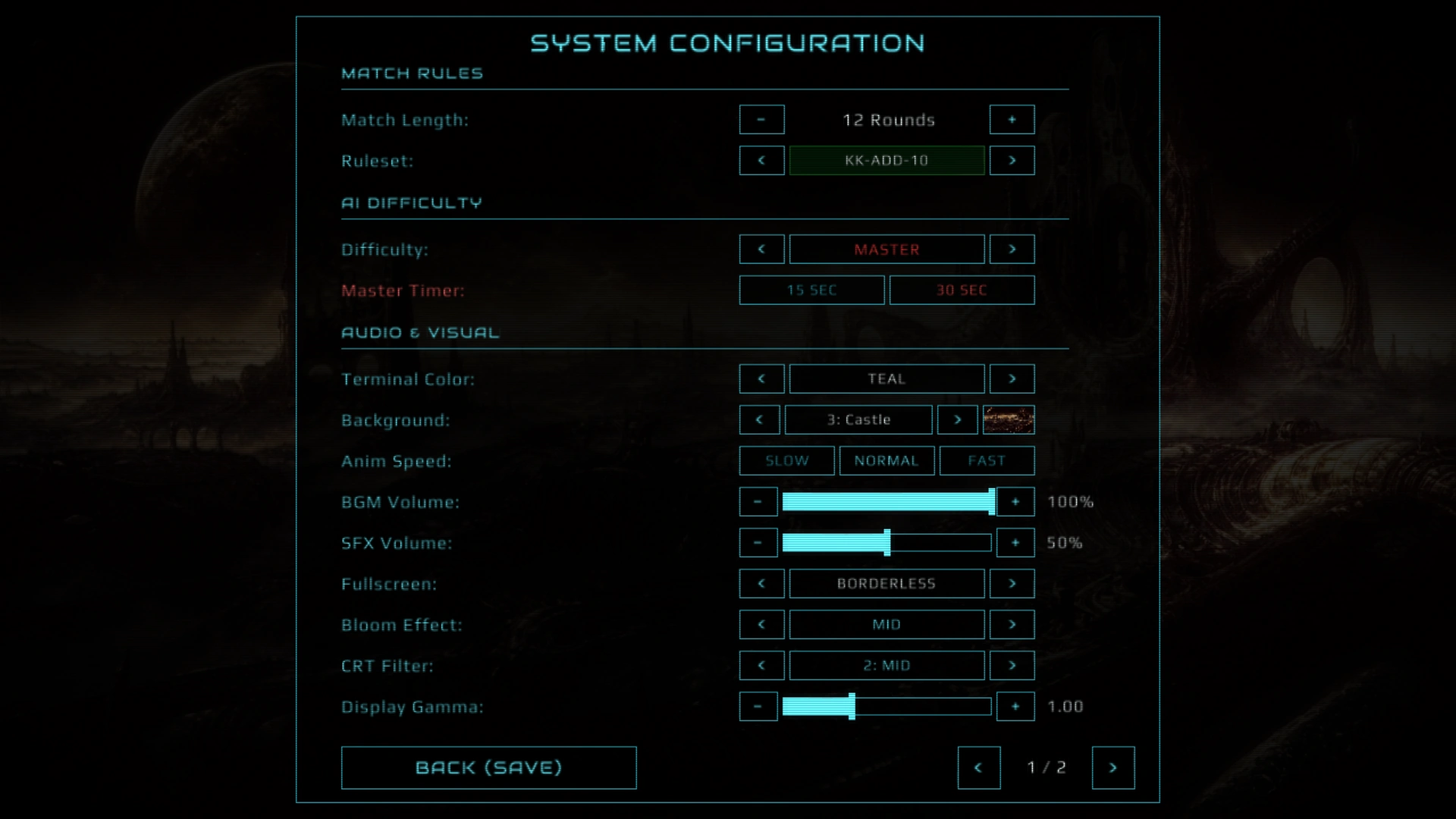
Options page 1 in the current UI. The 12-round Master match is this player's saved example, not the fresh-install configuration; Display Gamma reads 1.00. The table below separates these captured choices from the defaults.
The left column is the label the screen shows. The right column is what storage_load_settings() in src/storage.c returns when no saved settings exist:
| Setting | Options | Fresh install / browser profile |
|---|---|---|
| Match Length | 1 to 12 rounds | 2 |
| Difficulty | Easy, Hard, Master, DEUS SUPREMUS | Easy |
| Ruleset | Nintendo, FudaWiki, KK-ADD-10, Tournament, Yakuza. screens_draw_options() paints the row green for Nintendo and KK-ADD-10, amber for FudaWiki, and red for Tournament and Yakuza; it is locked to Yakuza on DEUS SUPREMUS |
KK-ADD-10 |
| Master Timer | 15 sec or 30 sec, and the row only answers to clicks at Master. Against DEUS it reads Deus Timer: 15 SEC (LOCKED) | 15 |
| Background | Harvest, Hole, Arctic, Castle, City, Face, Realm — seven, because index 5 is his and both arrows step over it. The row shows a live 46 x 26 preview of the frame you are on | Harvest (0) |
| Terminal colour | Green, Amber, Teal, Crimson, Violet. A sixth name, DARK, is what playing DEUS sets; leaving him puts you back on Teal | Teal (2) |
| Anim Speed | Slow, Normal, Fast | Slow |
| BGM Volume / SFX Volume | Sliders, shown as a percentage | 100% / 50% |
| Music Folder (desktop, page 2) | Folder path for up to 10 custom MP3 match tracks; Use Default restores shipped tracks | Built-in music |
| Action audio (page 2) | Chorus, Bass boost, Space reverb; controls capture/Koi-Koi-triggered music processing | Off, +0 dB, 50% |
| Bloom Effect | Off, Mid, Full | Mid |
| CRT Filter | 0: Off, 1: Low, 2: Mid, 3: High | 2: Mid |
| Display Gamma | 0.5 to 2.0, in 0.05 steps, or straight to any point on the slider | 1.00 |
| Fullscreen | Desktop: Windowed, Borderless. Browser: Windowed, Fullscreen (see below) | Windowed |
Gamma 1.00 is the neutral default on desktop and in the WASM/browser build. It applies when there is no saved settings file. An existing browser profile keeps its saved gamma instead of being reset by an update; use the Display Gamma slider and BACK (SAVE) if you want to change that saved choice.
BACK (SAVE) writes the settings and returns you to the menu (screens_handle_options_click() in src/ui_screens.c), and the next match starts with what you left there.
Custom music (desktop)
- Open Options, use the bottom-right arrow to reach page 2, and click the music-folder button at the top.
- Type a full folder path, or press Ctrl+V to paste one (pasting replaces the whole field). Paths containing spaces are supported. Quoted paths copied from Windows Explorer work too.
- Click Apply or press Enter. The choice is saved in
settings.txtasmusic_folder=…, and the next match uses your songs with the existing BGM volume and capture reverb.
The game scans that folder only, not subfolders, sorts filenames, and loads the first 10 playable MP3 files (including uppercase .MP3 extensions). There is no required naming scheme. Invalid tracks are skipped; an empty, unreadable, or invalid folder shows an error and leaves the current playlist unchanged. A single playable track repeats. Larger playlists use the existing match-music shuffling.
Use Default (or applying a blank path) restores the shipped match tracks. Cancel leaves your setting unchanged. Menu music and sound effects are not replaced. The original files are never copied, changed, or deleted. Keep your folder available: if it is missing or has no usable MP3s on the next launch, that session falls back to built-in music, retaining the saved path so you can reconnect the folder or change it in Options. Folder contents are rescanned at launch or when you apply the path again, not continuously.
This option is desktop-only. Browser builds cannot read a local folder path and continue using bundled music. BGM and SFX volume controls still work there.
Action card audio effects
On Options page 2, beneath Audio effect options, the three sliders change the music effect triggered by taking/capturing cards or calling Koi-Koi. They do not apply continuously or replace card SFX. The existing action envelope builds and fades; sliders set its maximum strength.
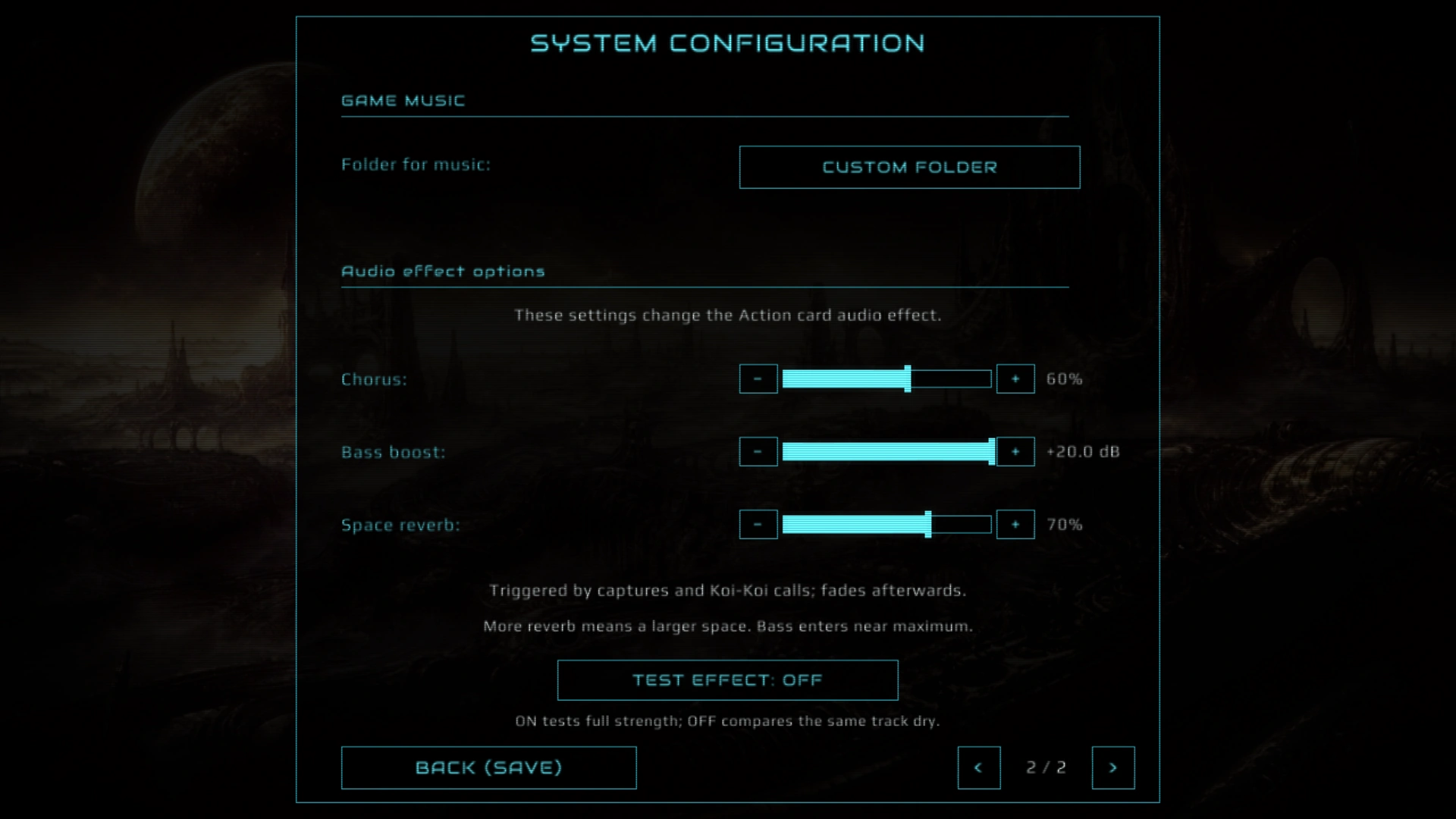
Options page 2 in the current UI. Chorus 60%, Bass +20 dB, and Space reverb 70% are this player's example settings, not the fresh defaults of Off, +0 dB, and 50%.
- Chorus: replaces the discontinued stereo widener. Adds two pitch-modulated short-delay voices over the direct music. Raising the control increases their level and modulation depth. The two channels use identical modulation and fixed gains: this is a layered chorus, not an auto-panner. Chorus deliberately modulates pitch/phase; set Chorus to zero if you do not want that movement.
- Bass boost: maximum is a +20 dB low shelf with stereo-linked compression of only the added bass (up to 4:1); the midpoint requests +10 dB. The original music is not ducked by the bass compressor. The displayed dB value is the low-frequency pre-compression ceiling at full action strength; loud material receives less additional gain to prevent clipping. See the current 96 kHz regression note before treating that endpoint as verified on every output device.
- Space reverb: increasing the slider expands reflection spacing and diffusion, and lengthens the decay from a small room toward a large hall—not just a louder copy of the same room. At nominal 44.1 kHz, measured impulse-decay estimates are about 0.6 s at 25%, 1.1 s at 50%, and 6 s at maximum. The largest setting includes low-frequency ambience in the centre of the return; bass opens over the final 20%, while the stereo diffuse field stays focused on mids/highs. Dry music remains present. This is algorithmic room/hall reverb, not a recorded impulse response or a shimmer/pitch-shifting reverb.
Use TEST EFFECT: ON/OFF below the sliders to audition your settings. ON plays match music from your selected folder (or the built-in playlist) through the real effect at full action strength, with slider changes applied live. OFF keeps that same track playing dry for comparison, with a short smooth release rather than an abrupt cut. Finished tracks advance through the loaded playlist. BGM volume/mute is respected. Leaving page 2 or using BACK (SAVE) stops the audition and restores menu music. Test state is temporary, never saved; with no playable tracks the page displays a warning instead of starting a silent test. This control works in the browser too, using bundled music.
Zero disables each corresponding contribution. BACK (SAVE) saves the three controls in settings.txt (effect_chorus, effect_bass, effect_reverb). Fresh defaults are Chorus off, +0 dB bass, 50% space reverb. Old effect_stereo values are ignored rather than turning a different effect on automatically. With all effects off, music is unchanged with no added latency. The effect sliders also work in browser builds; the local folder control remains desktop-only. See DSP design, sources and numerical verification for mono-safety checks and device-rate limitations.
Fullscreen
- Desktop builds: the Options row switches the game between Windowed and Borderless, and the choice is saved with your other settings.
- Browser build: fullscreen belongs to the page, not the game. Use the [ FULLSCREEN ] button in the bar above the game, or the Options row inside the game — both do the same thing and both read back the browser's real state. The game canvas fills the screen with no browser chrome around it.
- To leave fullscreen, press Esc. The in-game Options row works as an exit too, which matters because the page bar is not visible while the canvas is fullscreen.
- While fullscreen is active, Esc leaves fullscreen instead of opening the pause menu. Leave fullscreen first, then press Esc again to pause.
Visual and audio feedback
The menu and table backgrounds use depth fog and normal-map lighting when their textures and shader are available. On the table, capturing cards or calling Koi-Koi triggers a flash in the moving background light: it stays at full strength for 500 ms, then rolls off gently for roughly 2 seconds; a new capture or call restarts the hold. A capture also throws a burst of dark shards, with consecutive captures increasing the burst. Ambient ash rises on a slow, gusting sideways wind rather than a straight vertical path. The active player's score and capture lanes light up when the turn changes; interactive boxes and highlighted cards carry moving perimeter dots, and the combo panels' dots brighten as combinations accumulate. These are visual cues, not extra points or a change to matching (src/ui_board.c, src/ui_theme.c).
Match music has capture/Koi-Koi-driven chorus, bass, and space-reverb processing that builds with successive captures and then fades; the page-2 sliders set the strength of those contributions. Menu music is separate and does not use the action processor. Card drops and captures have sound effects. If assets/sfx/capture.wav is absent, captures use card_drop.wav instead. The BGM and SFX sliders are separate; SFX at zero is mute, while enabled card sounds have a minimum playback level (src/ui_audio.c).
Stats and history
The game records statistics for finished matches only. Restarting, abandoning, or closing a match in progress does not count.
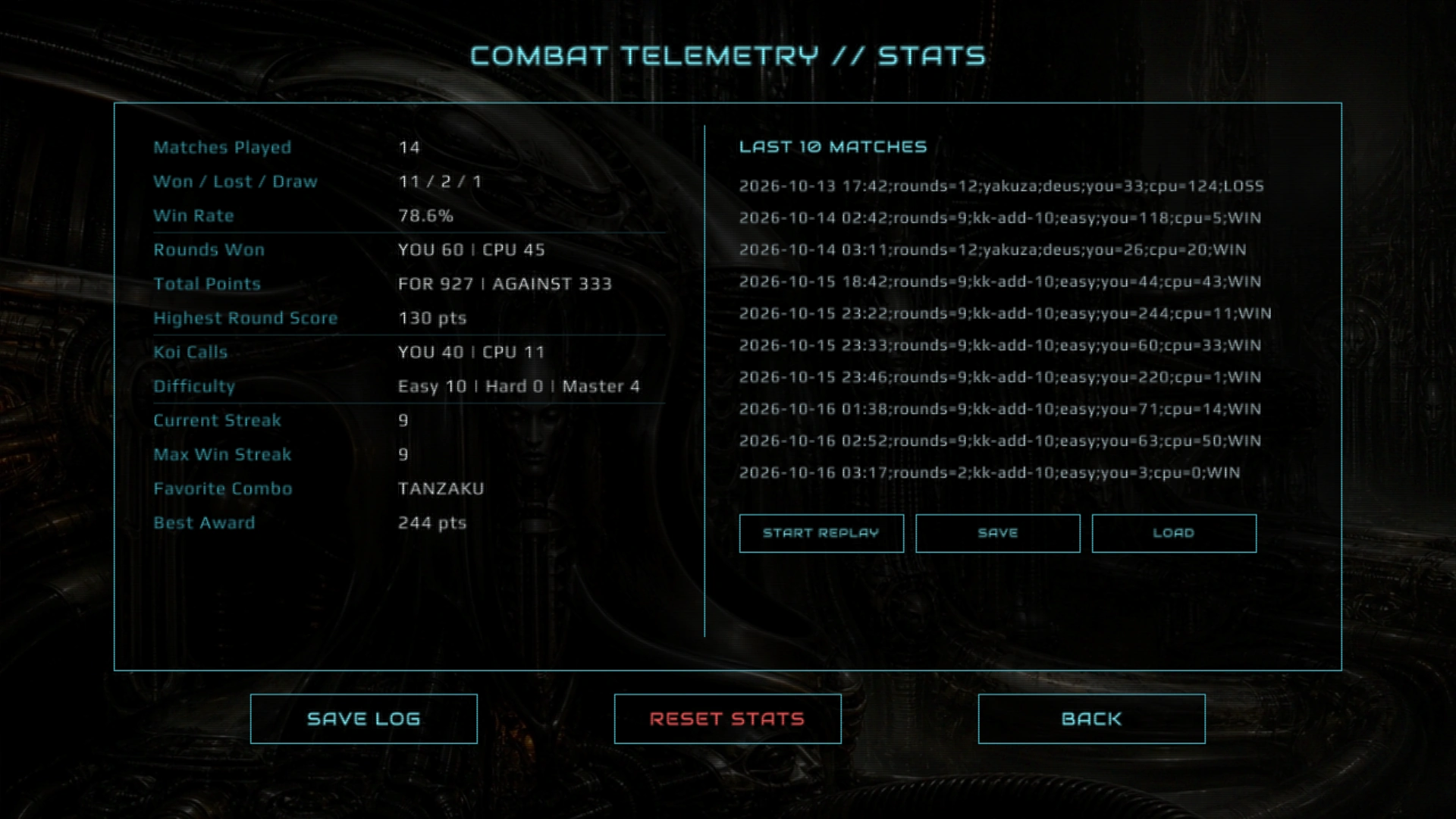
This screenshot predates the three coin rows now shown on the left of the Stats screen. It has 14 matches, 11 of them won. Read the Difficulty row against the log on the right: it says Easy 10 | Hard 0 | Master 4 while two of the ten lines end in deus - there is no DEUS counter, because a match against him increments the Master total (src/storage.c:355). The stat rows in this older frame show GameStats fields from stats.txt; the newer coin rows come from the saved clearance mask in settings.txt.
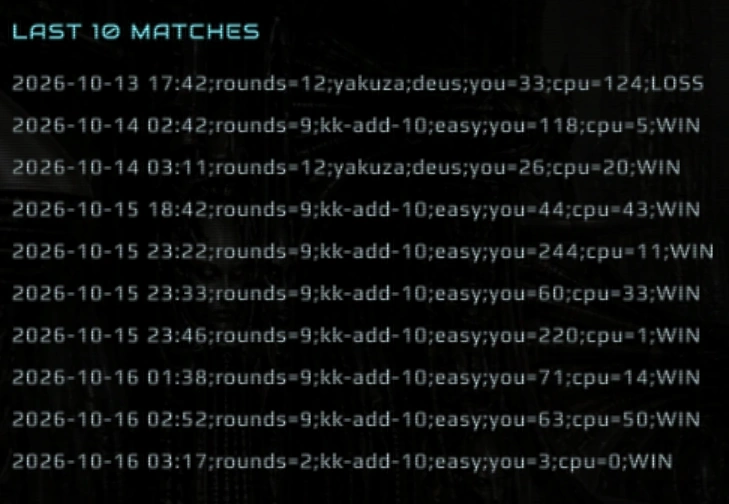
Those are the records themselves, printed as stored. A line is date time;rounds=N;ruleset;difficulty;you=;cpu=;outcome (src/storage.c:377), which is also what history.txt holds, and on desktop each line has a clickable selection area: the rectangle that draws the highlight and the one that catches the click are the same box (src/ui_replay.c:378 and :323), 400 game px wide (ROW_W, :19). The text is not clipped to it - on the longest line here it runs to x 1116, 66 px past the box - so the frame you can click is narrower than the line you read, and clicking the tail of a record does nothing.
Tracked statistics include:
- Matches played, won, lost, and drawn
- Win rate
- Rounds won by you and by the CPU
- Total points for and against
- Highest round score (the best single round) and best award (the highest total in a match you
won) - two different fields,
highest_round_scoreandbest_awardinsrc/storage.h:34-35, and the second row is labelled only "Best Award" - Koi-Koi calls by you and by the CPU
- Matches per difficulty. The row has three numbers and no DEUS column: a match against him is
counted with Master (
src/storage.c:355) - Current and best win streak
- Yaku counts, which feed the favourite combo shown on the main menu
Match history is written to history.txt, and a report is written to stats_report.txt. Both are next to the game. SAVE LOG at the bottom left of the screen is what writes the report, and it says so on the screen for a moment (src/ui_screens.c:345). RESET STATS is the only red button and it asks first: a modal over the panel, RESET ALL STATS & LOGS?, This action cannot be undone., CONFIRM or CANCEL (src/ui_screens.c:346-353).
Replays
On desktop, completed matches are recorded when recording is active and the replay file can be saved. The Stats screen lists the last ten matches on the right; click a line to select it and use the three buttons underneath. The browser build keeps match statistics and history but does not save or load replay files:
- [START REPLAY] plays the selected match back on the board.
- [SAVE] asks for a name and copies the selected match to that name, so you can keep it or pass it on.
- [LOAD] lists the
.txtfiles in thereplays/folder; pick one and press PLAY. To load a replay someone shared with you, put its file in that folder first.
Records are written to the replays/ folder next to the game as plain .txt files:
- The ten most recent matches are kept automatically and named after the date and time they finished, for example
2026-10-15_1548.txt. A second match finishing in the same minute is stored as..._2.txt. When an eleventh match arrives, the oldest automatic record is deleted. - Files made with [SAVE] are never deleted by the game. Give them the names you want.
- A record holds the match seed, the AI RNG starting state, the ruleset, round count, difficulty, master timer and opponent, plus the card choices and decisions from both sides. Playing it back feeds those choices into the same engine again, so the deals, captures and scores are the same.
- A record can only be made while the match is played. Existing log entries from before this feature, matches that were never finished (restarted, abandoned or closed), and DEUS SUPREMUS matches lost on the turn timer have no record. A replay never counts towards statistics, streaks or unlocks, and the game never changes a record.
- While a replay runs, the status line shows
REPLAY - P TO PAUSE ESC TO STOP, orREPLAY PAUSEDonce it is frozen. Esc leaves the replay and returns to the Stats screen, and so do the STOP button - the lower of the two board buttons, which reads RESTART in a live match - and STOP REPLAY in the pause overlay. P or the PAUSE button freezes the board; the overlay then offers RESUME and STOP REPLAY rather than the match actions, because a replay cannot be restarted or abandoned. - The choice, decision and round-result windows are not shown during a replay - the board, the capture piles and the combo panels are.
- A replay is watched, not skimmed: every round is dealt out from the stock pile with the round-start banner, and every hand card and stock card flies to the table before the engine takes the step. The flight is a little slower than a live turn and is followed by a beat to read the board, and it follows the animation speed set in Options. The engine step itself waits for the flight to land, so the board never gets ahead of what is drawn.
- A record with an unsupported replay-format version is refused with a short message. If a later engine change makes a valid record diverge, playback stops with a short message; incompatible replay changes must increment the format version.
- The browser build has no replay buttons. It cannot read or write files next to the game, so the Stats screen there shows the log list without the replay controls and without selection.